
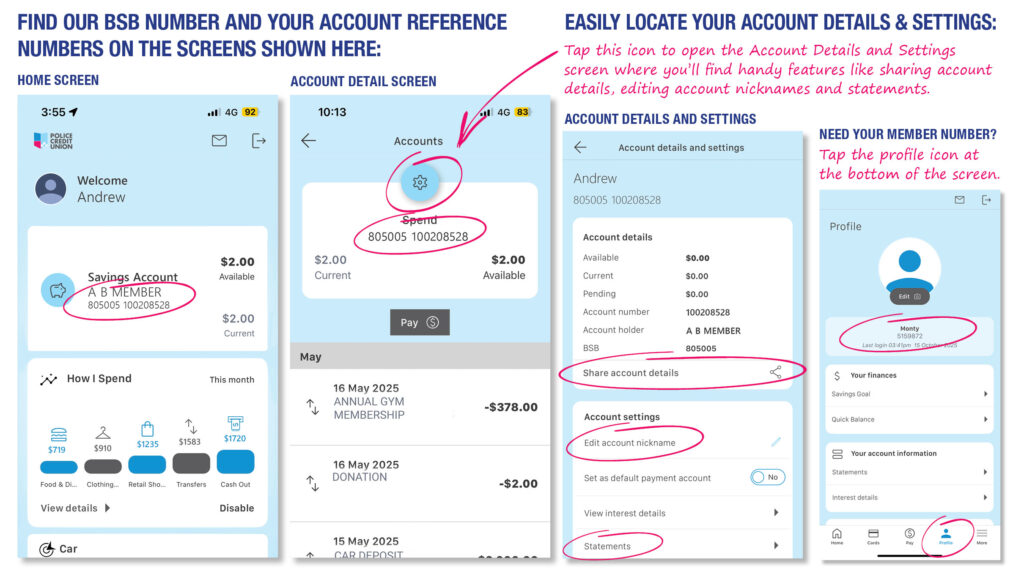
From 16 December, when you view your accounts in the Police Credit Union Banking App, you will see our BSB 805 005 followed by an Account Number, a 9-digit number starting with ’10’ e.g.100208528 for each account.
If you have multiple accounts and loans with us, you will have multiple Account Numbers. Use your Account number to easily identify individual accounts and to transfer funds into your specific accounts.
You will no longer see your Member Number, a 7-digit number starting with ‘5’ often followed by a letter and number like S1 or L30 which represents the type of account or loan you have. This change will help to reduce mistaken payments and matches how accounts are identified across the banking industry.
Our BSB Number 805 005 remains the same.
Looking for your Member Number?
If you need to find your Member Number in the Banking App, tap on ‘Profile’ in the menu at the base of the screen and find your Member Number under your picture and your name.
In Online Banking, when you log in, you will see a list of your accounts, your Member Number ending with a letter and number like S1 or L30, will be in brackets.
Your statements will show your Member Number and Account Numbers.
Use your Account Number for external transfers into your account.
Your Account Number is really handy to make sure money is transferred into a specific account. It’s especially important for external payees and transfers from other financial institutions, particularly when using Fast Payments. Whereas using a Member Number to transfer funds will mean the payment will go into one of the accounts under your membership (often a default account) or will be rejected as the system cannot determine the exact account for payment.
Tip: use nicknames to make identifying your accounts even easier
Add a nickname to your accounts and make them even easier to find. From the Banking App home screen, tap on an account, next tap on the blue circle with a cog image at the very top and under ‘Account settings’ select ‘Edit account nickname’.
To add a nickname to an account using Online Banking, follow these step-by-step instructions
Our support article Find your Account Number and external transfers has information on the differences between an Account Number and Member Number.